How it works
1
Upload the photo
A product shot, a label, a banner or a poster. The bigger the text is in the frame, the more of its lettering the model has to copy.
2
Mark the words and type the new text
Brush over the words, or drag a rectangle around them, then put the new text between the quotes in the prompt. When the prompt already says which text to change, like a discount or a translation, you can skip the brush.
3
Generate and proofread
With Nano Banana 2.1 a 1K edit costs 6 credits. Read every letter of the new text before you download. Downloads have no watermark.
Real results
Each example was generated on YepShot with Nano Banana 2.1 at 1K, using the prompt shown on its card. The source photos are AI-generated and the brands are fictional. The first three change text that was already there, and each is the first result we got for its source photo, not the best of several tries. The last one adds new text to a plain product photo.
Before 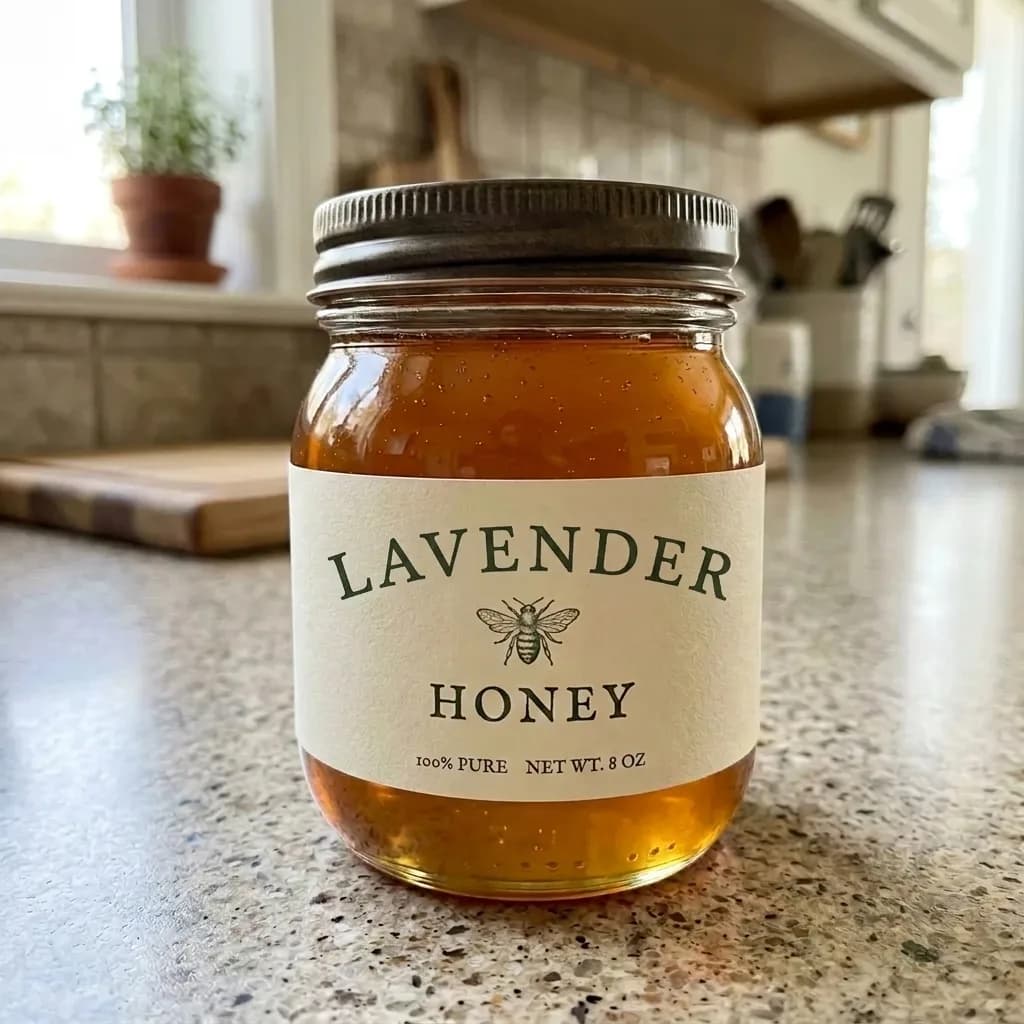
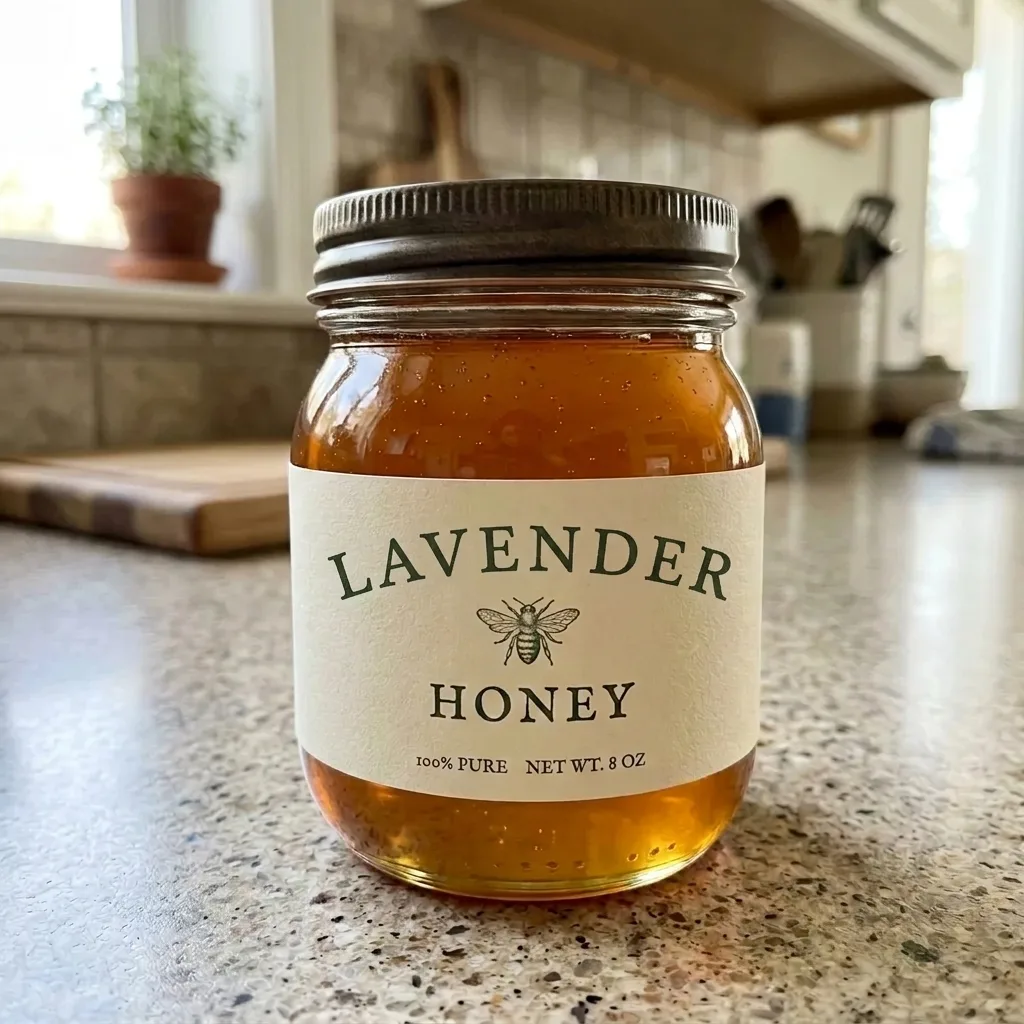
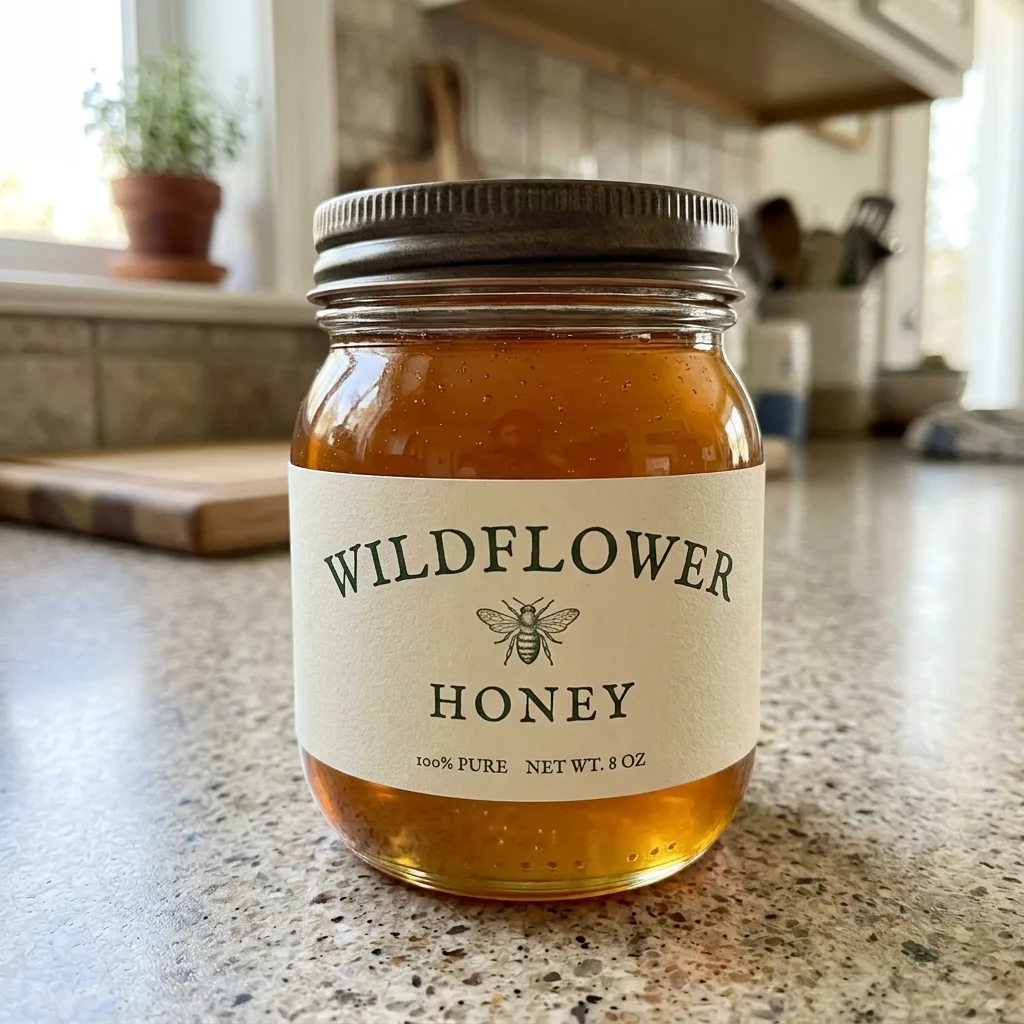
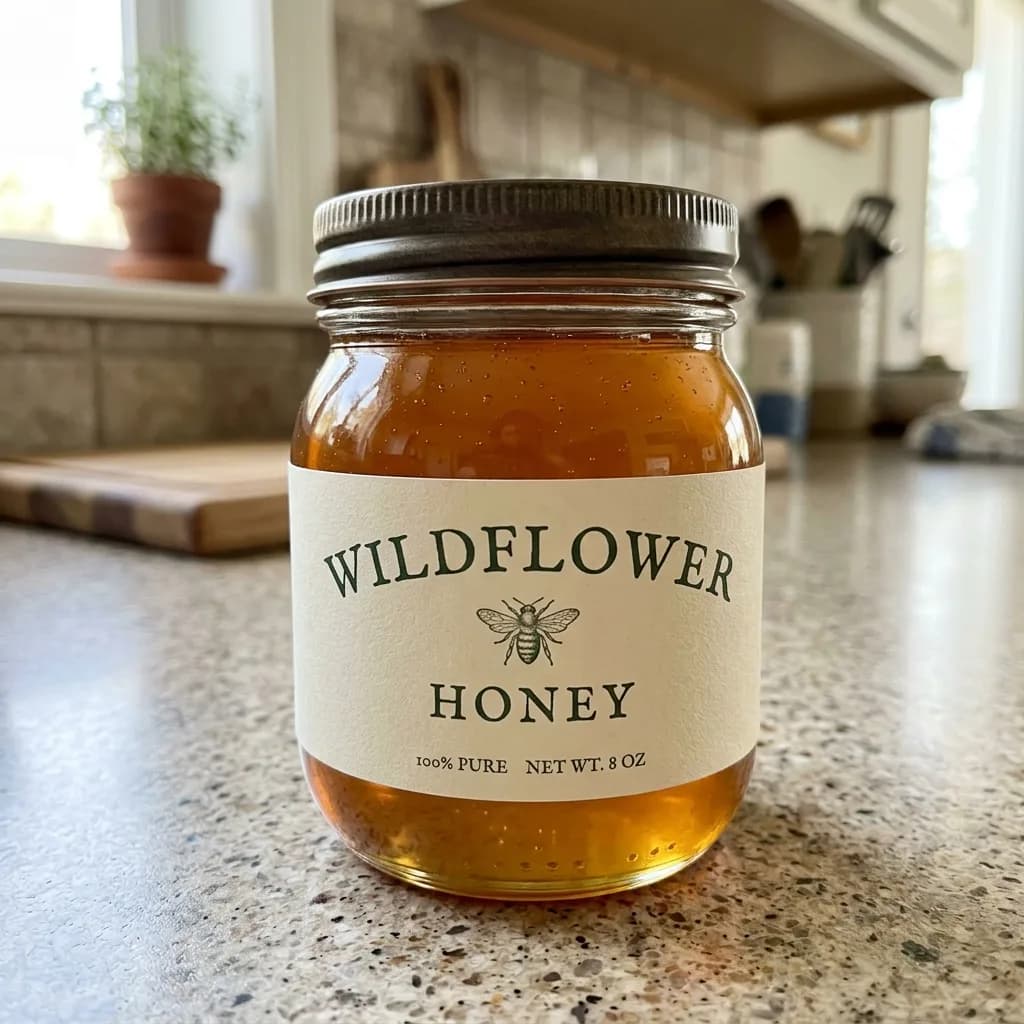
Nano Banana 2.1 Change the Name on a Product Label
Brush the area to edit first
Replace the text in the marked area with "LAVENDER". Match the original lettering exactly: the same typeface, weight, color and letter spacing, following the curve of the label. Keep everything outside the marked area unchanged.
Before 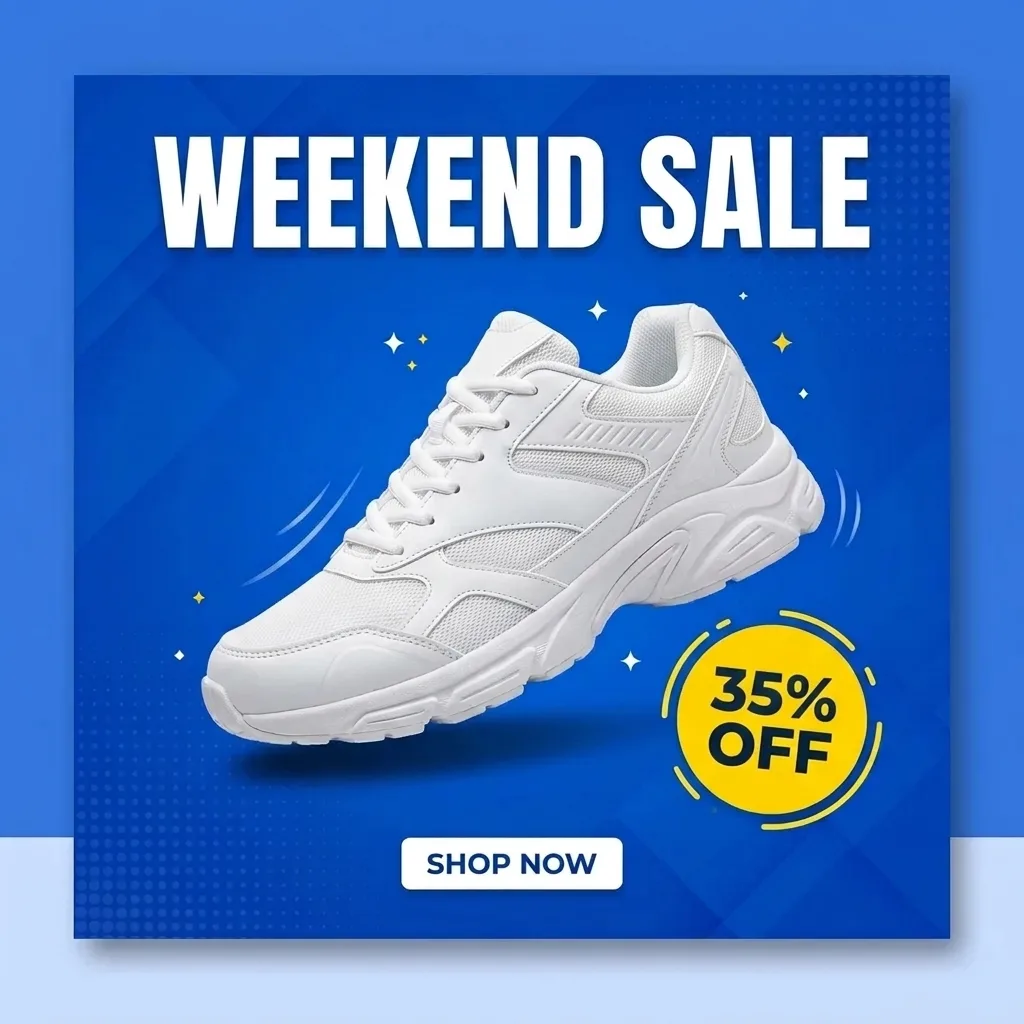
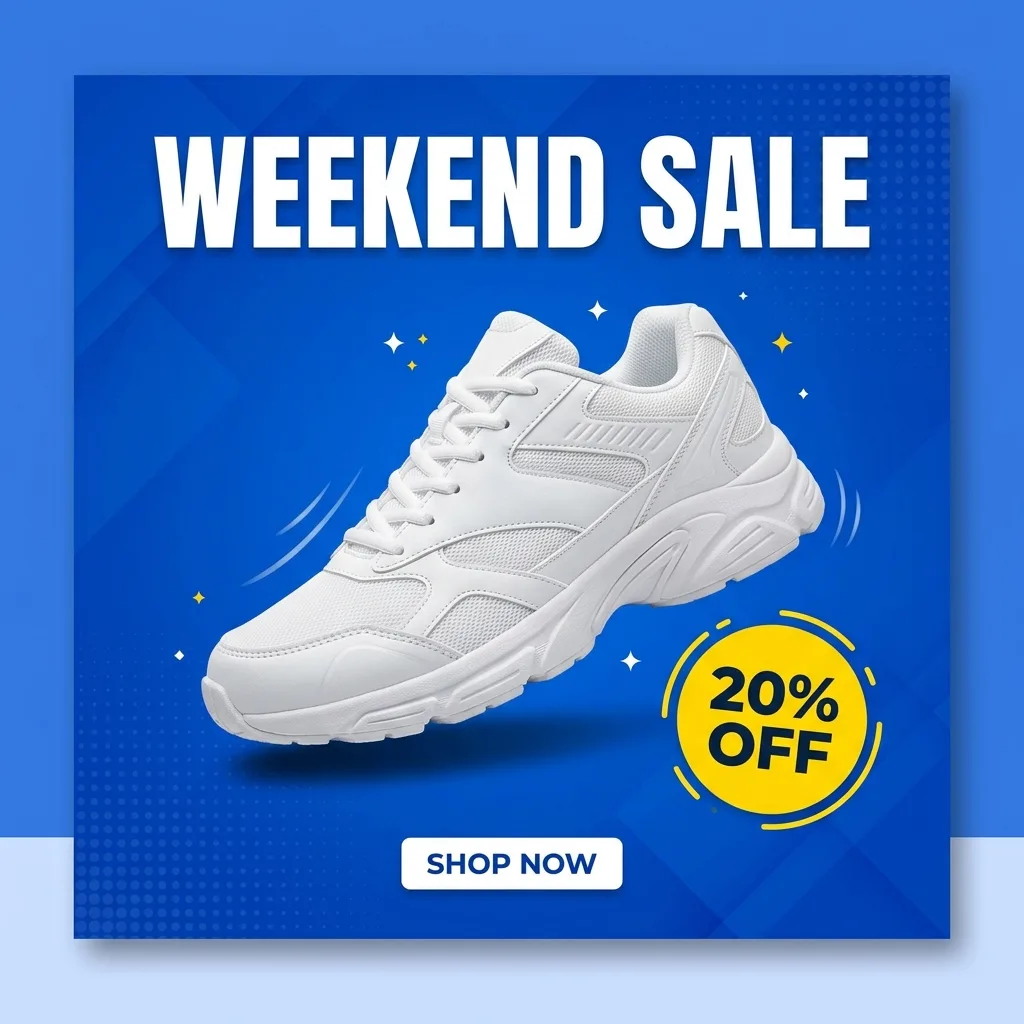
Nano Banana 2.1 Update the Discount on a Promo Graphic
Change the discount to "35% OFF" wherever it appears. Keep the typeface, colors, layout, product photo and every other word exactly as they are.
Before 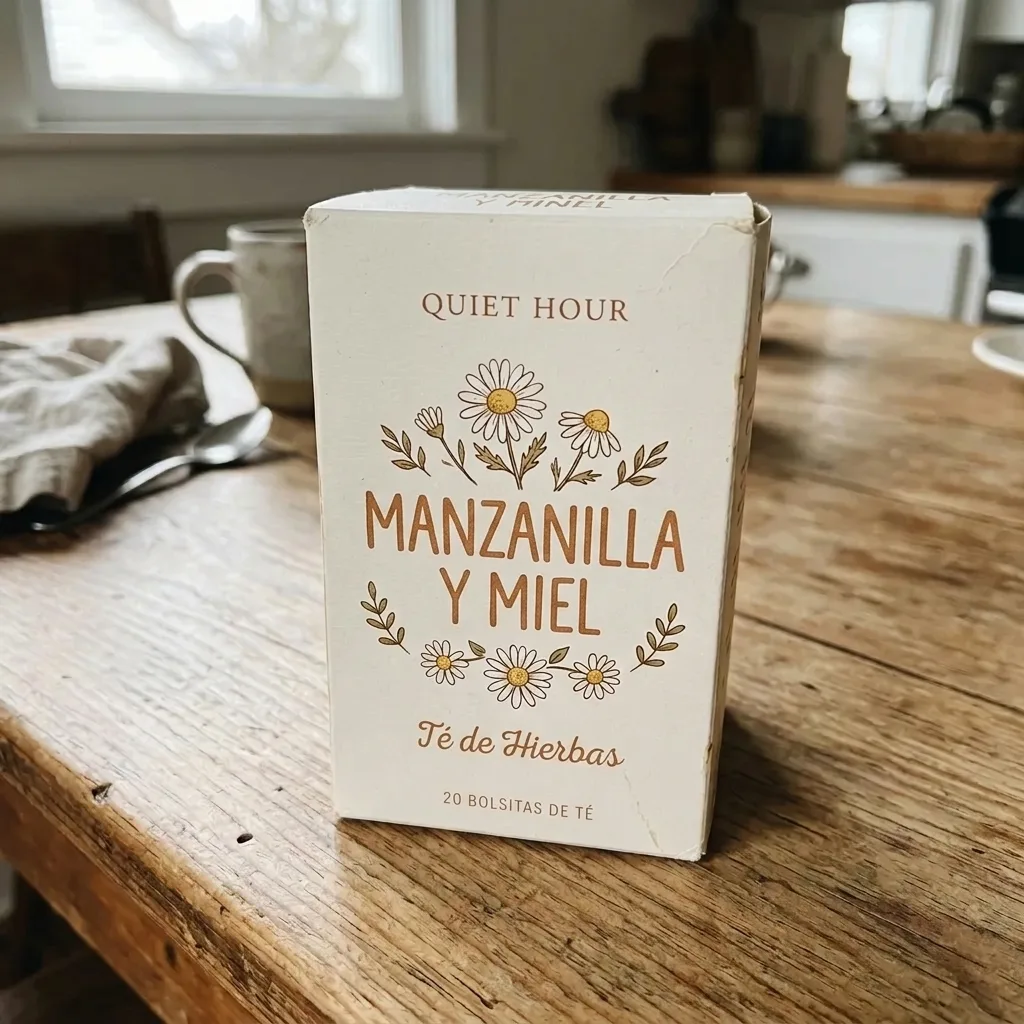
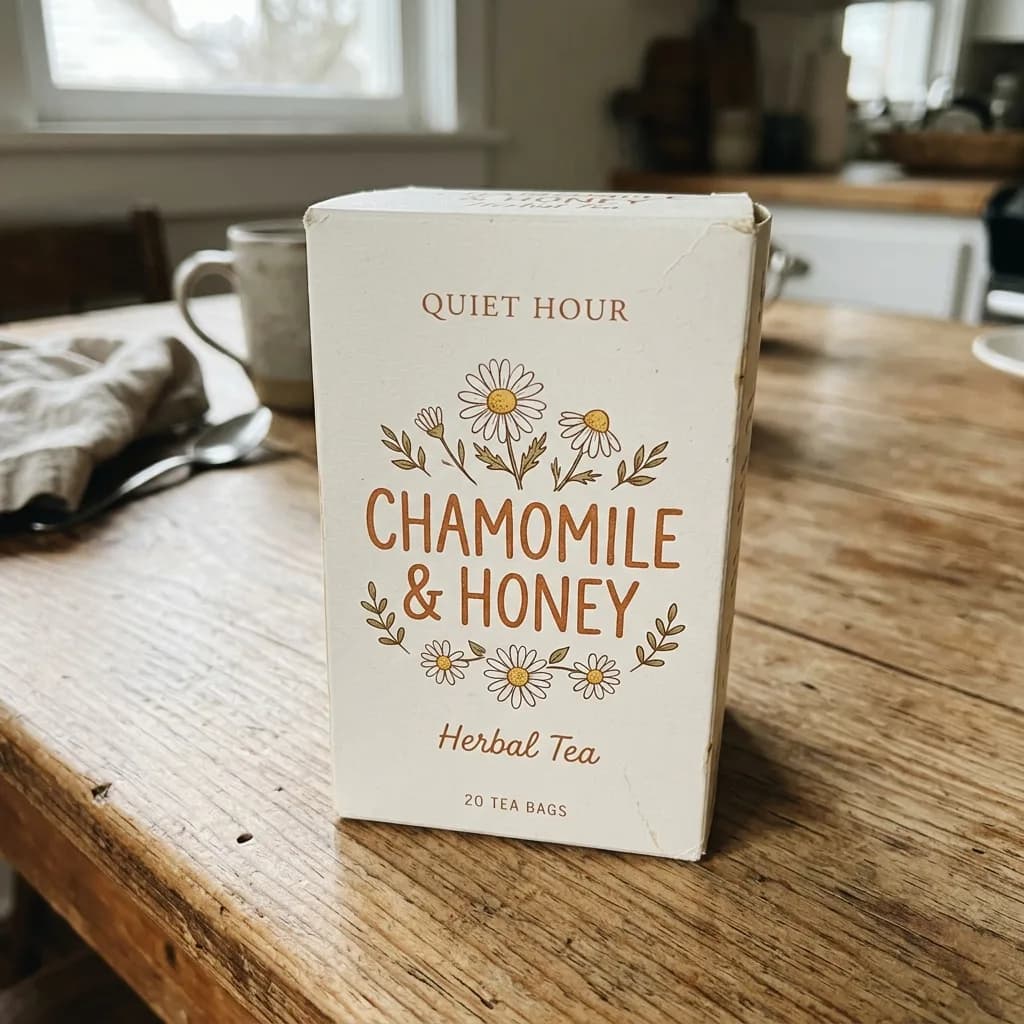
Nano Banana 2.1 Translate the Text on Packaging
Translate the English text on the packaging into Spanish. Keep the brand name as it is, and give each translated line the same typeface, size, color and position as the original. Leave the product, the rest of the packaging and the background unchanged.
Before 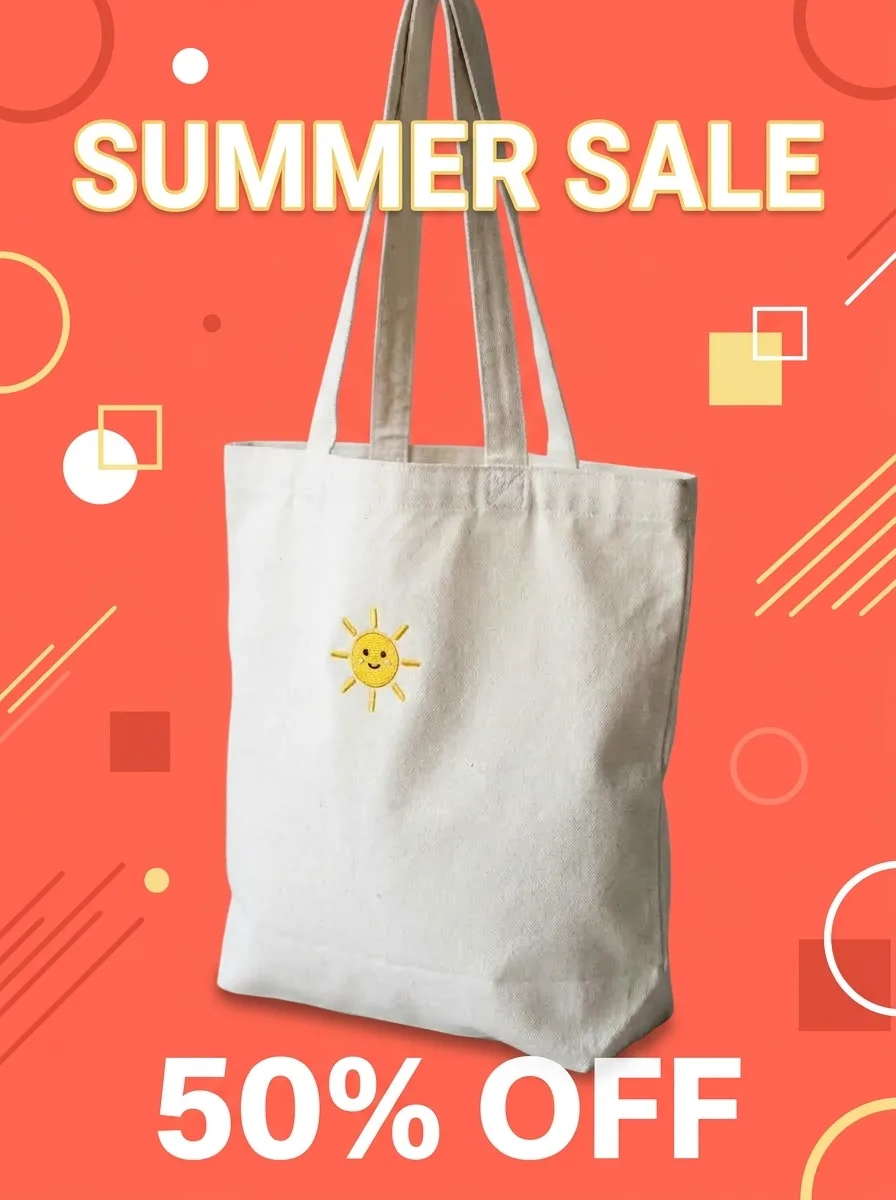
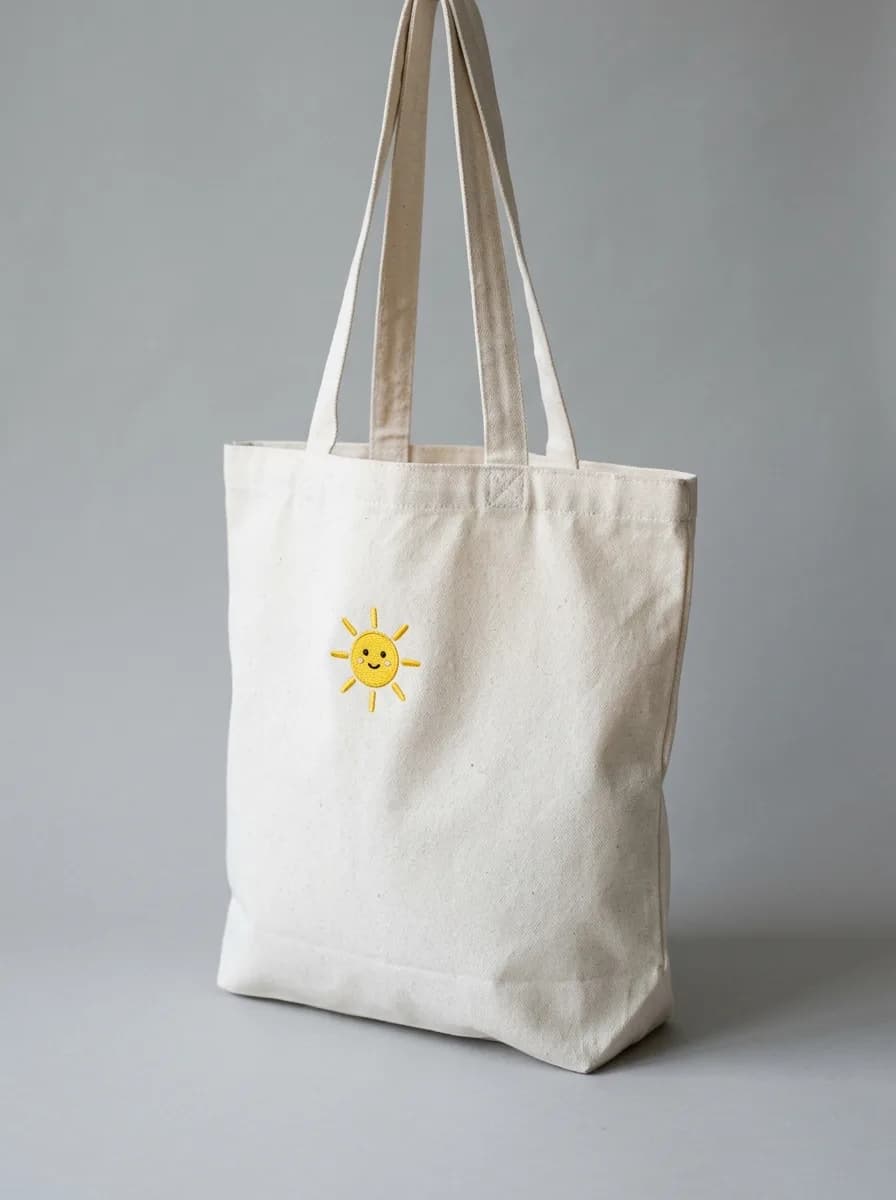
Nano Banana 2.1 Turn a Product Photo into a Sale Poster
Turn this product photo into a sale poster. Keep the product unchanged and centered. Add the headline "SUMMER SALE" at the top and "50% OFF" below the product in a bold, clean sans-serif, on a bright coral background with simple geometric shapes. Spell the text exactly as given.
What changed besides the text
We compared the first three results with their originals pixel by pixel.
- The lettering carried over
- LAVENDER came out in the same green serif capitals as WILDFLOWER and followed the curve of the jar. 35% came out in the same bold type, inside the same yellow badge, as 20%.
- Almost nothing else moved
- Pixels that differ from the original by more than 30 of 255 levels: 1.0% of the image for the label, 0.3% for the discount and 2.0% for the translation, nearly all of them inside the letters. The flower drawing on the tea box was redrawn very slightly.
- The translation was right, the casing wasn't
- All three lines and the text on the box's top flap were translated correctly. The model kept English title case, writing "Té de Hierbas" where Spanish would write "Té de hierbas".
Getting the text right
- Put the exact text in quotes
- Write the new words exactly as they should appear, capitals included, between quotes. The model spells what is in the quotes; it does not correct it.
- Keep it short
- A word or a short line renders more reliably than a sentence. If you need more text, change it in steps and continue editing the result.
- Match the length
- A replacement close to the original's length fits the same space. A much longer one has to be squeezed or wrapped, and the layout around it can shift.
- Proofread small print
- Small text is where letters go wrong. On our background replacement page, the G in a small "GRIND COFFEE" print came back looking like a 6, in an edit that wasn't meant to change any text.
Frequently asked questions
Does it keep the original font?
In our examples it did: the jar label kept its serif capitals and the badge kept its bold type. The model imitates the lettering it sees rather than identifying and installing a font, so compare brand typography with the original closely.
Can it translate the text in an image?
Yes. The tea box example translates three lines from English into Spanish and keeps the brand name. Change "Spanish" in the prompt to the language you need, and have a native speaker check the result.
Do I need to brush the text?
When there is a lot of text and you want to change one word, yes: the brush tells the model which word. The discount and translation examples ran without a brush because the prompt already said which text to change.
Can I change ingredients, nutrition facts or a barcode number?
We wouldn't. Small print is where models get letters and digits wrong, and those details have to match the real product. Change them in your design file instead.
What if a letter comes out wrong?
Run it again, or click Continue editing on the result, brush the wrong word and repeat the correct spelling in quotes.
Can I use an edited label in my product listing?
Only if the product buyers receive looks the same. Marketplaces expect listing photos to show the real item, so a renamed or translated label belongs in mockups and ads until the real packaging matches. Amazon also doesn't allow added text on the main image.
How much does it cost?
With Nano Banana 2.1 an edit costs 6 credits at 1K, 7 at 2K and 15 at 4K, and 4K needs a paid plan. New accounts get 18 free credits, enough for three 1K edits.
Which model should I use?
Nano Banana 2.1 is preselected, and every example on this page was made with it. GPT Image 2.5 is also in the editor if you want to compare the two on your own photo.